
This article explains how to select multiple options from one feature in the Configurator and how to author the catalog to enable this functionality.
To enable multi-selection within a single feature, a specific feature group structure must be created using toggle selection types. This setup changes how the configurator displays options, allowing multiple choices to be selected simultaneously.
Configuration steps
Step 1: Create feature group structure
To enable multi-selection, create the following structure in the Features folder:
- Create the main feature group (parent level)
- Create a subgroup under the main feature group
- Update the subgroup's type to featureGroup
For more information on creating groups and subgroups, see this article.
Step 2: Add toggle features
Create or add multiple features under the subgroup with selectionType: toggle.
For more information on editing features, refer to this article.
Step 3: Link features to item
Select the required item and link the created features to it.
Step 4: Add configurator
- Click the three dots above the catalog name
- Click Add Configurator
Configurator display
The subgroup appears as a single feature with selectable checkboxes, allowing any combination of features to be selected. Select All and Clear All buttons provide quick selection controls.
Configuring for subitems
The same setup can be configured for subitems as well.
To do this, change the classification of features from Style to Subitem in the baseFeatureType field.
Option 1: Individual feature update
Update features one by one:
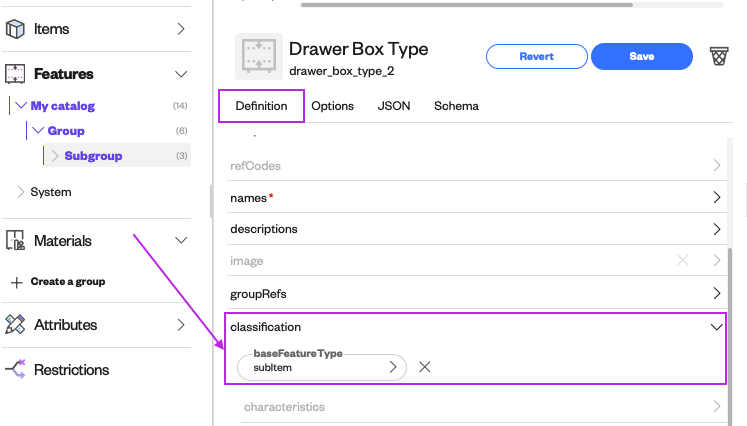
Option 2: Bulk edit all features
Update all features simultaneously using bulk editing:
For more information on bulk editing, see this article.